

Appearance
Media Library
Uploading files
- Click Media in the sidebar.
- Click Upload and select one or more files.
Supported formats include JPEG, PNG, WebP, GIF, SVG, AVIF, MP4, WebM, QuickTime/MOV, M4V, AVI, MKV, common audio formats, archives, and common document types.
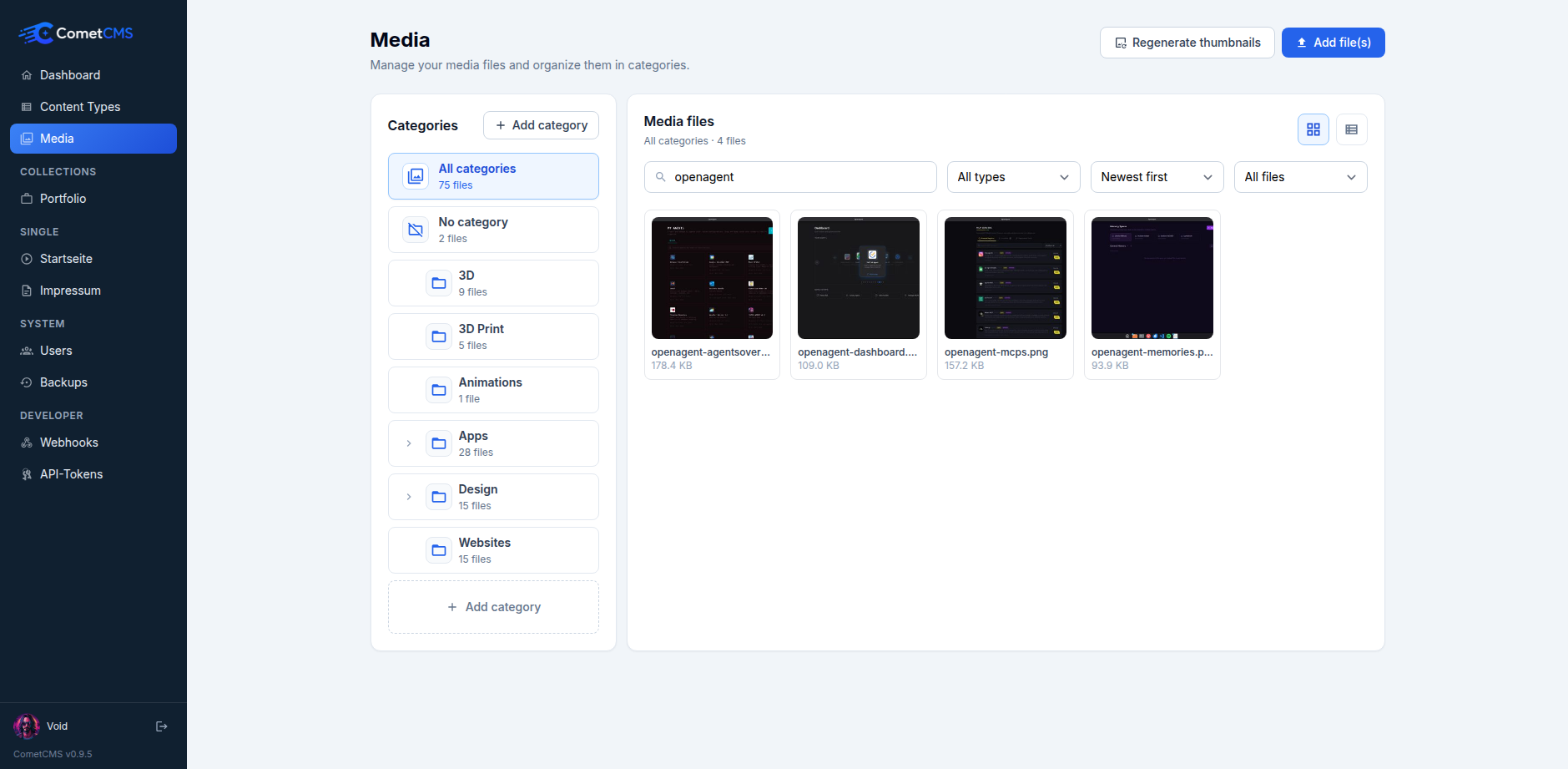
Organising with categories
Use a file's menu or detail panel to assign it to a category. Categories help you keep large libraries organised. Categories can be nested for finer-grained organisation, for example Brand / Logos or Products / Campaigns.
Alt text and title
Open any file to reveal the detail panel. You can set:
- Alt text — a short description used by screen readers and as the
altattribute in HTML. - Title — an optional tooltip shown when a user hovers over the image.
Both fields are included in the public API response and are saved automatically when you leave the field.
Visibility
Each file can be set to Public (default) or Private:
- Public — the file is served to everyone and appears in unauthenticated API responses.
- Private — the file is hidden from unauthenticated
GET /api/v1/workspaces/{workspace}/mediaresponses, and fetching the file directly viaGET /media/{workspace}/{filename}requires a bearer token withmedia.readpermission for that file.
Change visibility in the detail panel or use the bulk Set field → Visibility action to update multiple files at once.
Using media in content
Fields of type media let you pick a file from the media library directly within the content editor.
Accessing media files
Uploaded files are served from:
/media/{workspace}/{filename}Deleting files
Select a file and click Delete. This permanently removes the file and its metadata.