

Appearance
Backup & Restore
CometCMS includes a built-in backup and restore system for saving CMS data to ZIP files and restoring selected parts later.
Backup storage
Backups are stored in:
bash
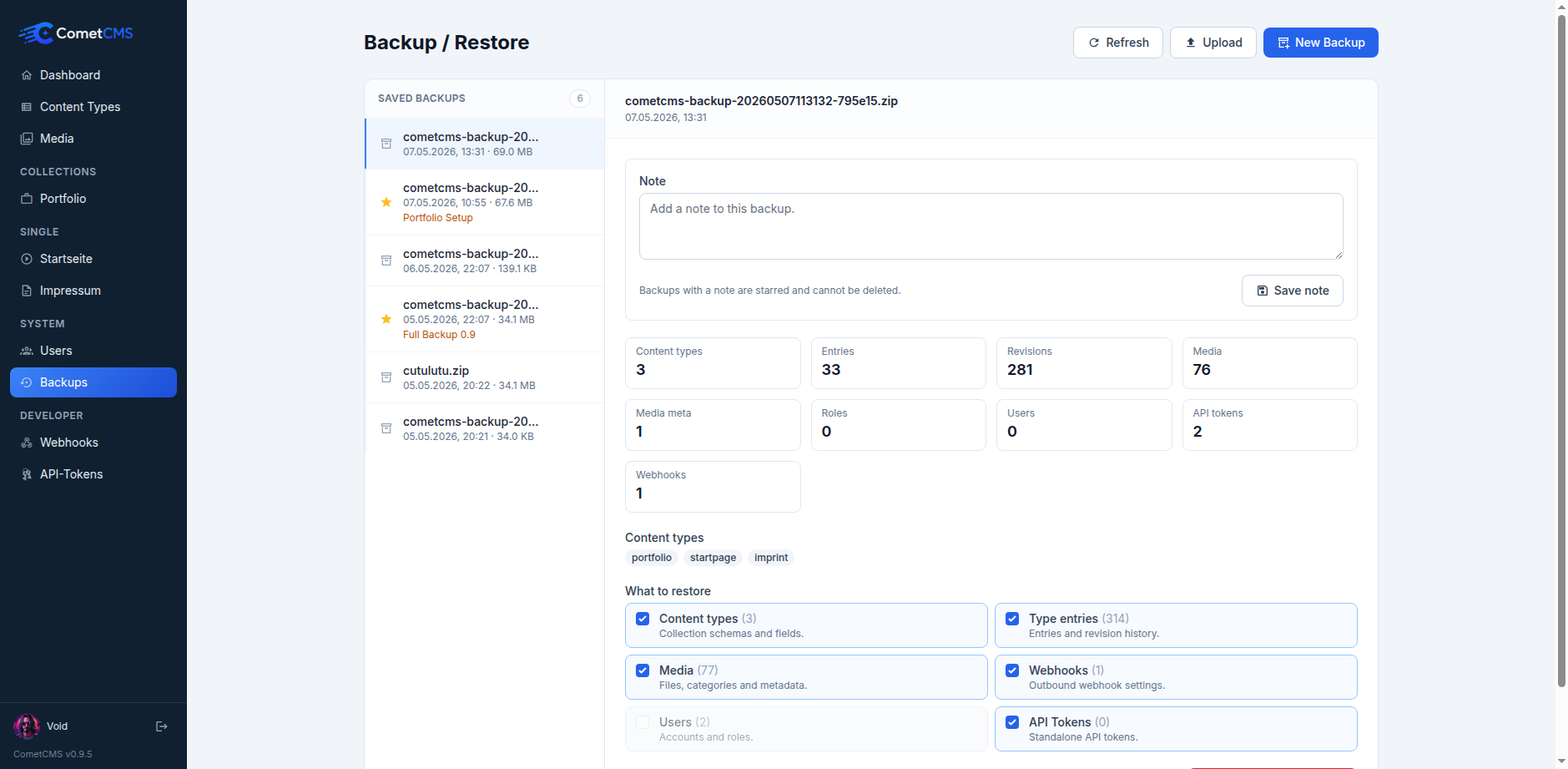
cms/storage/backups/The admin panel can list, inspect, download, delete, upload, and restore backups from this folder.
What can be backed up
When creating a backup, you can choose which parts to include:
| Part | Default | Details |
|---|---|---|
| Content types | On | Collection schemas and fields |
| Type entries | On | Entries and revision history |
| Media | On | Uploaded files, categories, and metadata |
| Webhooks | On | Outbound webhook URLs, secrets, and events |
| Users | Off | User accounts, roles, and application API tokens |
Passwords & API tokens: By default, password hashes and API token hashes are stripped from backups. To include them for full account and token restore, set
'include_password_hashes' => trueunder'backups'incms/config/config.php.
Restoring
Before restoring, CometCMS inspects the ZIP and shows the number of content types, entries, revisions, media files, users, roles, and webhooks it contains. You then choose which available parts to restore.
Users are intentionally off by default to prevent accidentally overwriting accounts on the destination server. User restore requires a backup created with password hashes included; otherwise users are skipped because they would not be able to log in.
Admin workflow
- Go to Backup / Restore in the admin panel.
- Create a new backup or upload an existing backup ZIP.
- Inspect the backup preview.
- Select the parts to restore.
- Choose whether to overwrite existing files and records.
- Click Restore selected parts.
Full filesystem backup
For a complete server-side backup, copy the entire storage/ directory via FTP or SSH:
bash
cp -r cms/storage/ /path/to/backup/storage-$(date +%Y%m%d)/To restore, copy the backup back to cms/storage/.